Adding to the Calendar, Gallery, or Information Pages
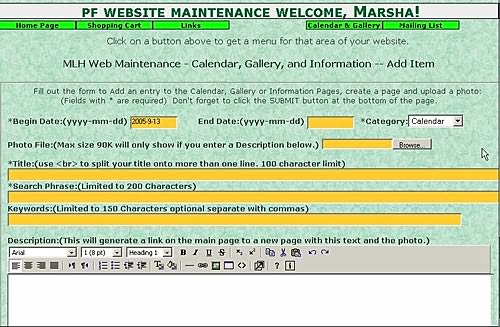 The page where you will enter the Event or Gallery item is shown to the right.
Begin Date: Input the beginning date the event is taking place in the yyyy-mm-dd format. For Gallery & Information entries I put the date I am entering the data.
End Date: If the event takes place over more than one day, input the end date of the event in the yyyy-mm-dd format, otherwise leave this box blank.
Input Brief Description Enter a brief descripton for the event if you wish the program to build a detailed page for the event (or this is a Gallery entry) or there is a URL associated with the event. Otherwise enter what you want your customer to see to describe the event.
Category:Choose which type of entry this is from the drop down box.
Photo File:A photo is optional but can be used on all of the pages. If you are presenting something special at a calendar event you may wish to show a photo. A photo may help to illustrate techniques on information pages and, of course, on the gallery you would want a photo. Click the Browse button to find the photo on your hard drive. (You can enter the file name manually if you like but you must enter the entire path to it. To avoid errors I recommend using the Browse button.)
Title:Input the Title of the page. This is what will be displayed for a link to the detailed page. For the Calendar this should be the name of the event and if you do not wish to have a linked page with additional information everything you want to appear should be in the title.
Search Phrase: Type in a phrase or sentence that is keyword dense and describes the content of the page.
Keywords: Input keywords that are specifically related to the content of the page. This is optional. If you do not enter keywords here the general keywords for the site will be used.
Detailed Information This is where you type in the information that will appear below the photo on the detail page. If you do not enter anything in this box there will not be a link to a detail page. (This is important for Gallery entries, you must say something about the piece or people won't see it except possibly on a thumnail page.)
TOP OF PAGE
Editing Calendar or Gallery Detail Pages
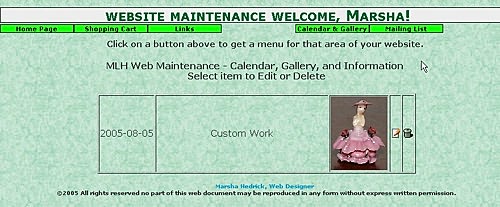 To Edit entries in your Calendar, Gallery or Information pages you will first see a page with a drop down box where you can select which category you wish to edit an entry from, calendar, gallery, or information. After you have chosen the category you will see a page like the one shown to the right with all of the entries in that category. At the right of the page you will see two icons. From left to right they are 'Edit' and 'Delete'. You will notice the 'Delete' icon looks like a trash can and the 'Edit' icon should look like a pencil on a piece of paper.
 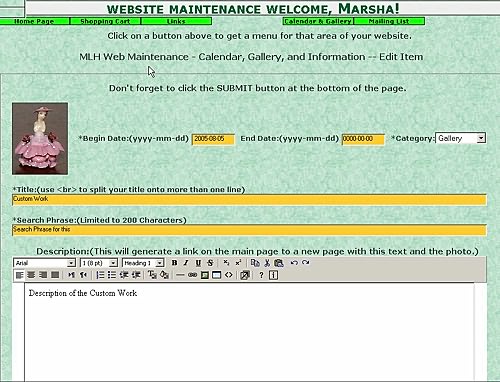 Click the 'Edit' icon next to the entry you wish to edit. Then you will see a page like the photo to the right. You can change everything except the photo on the entry. Simply click in the box that you want to change and change what you want to change. When you have finished click the 'Submit' button at the bottom of the page.
Deleting Calendar or Gallery Entries
TOP OF PAGE