Adding Category Info Files to the Shopping Cart
 This is the page where you will enter the information about each of your categories.
Input Category This is drop down menu that shows you all the categories available for your shop. Select the category you wish to enter information for. Note: If you select a category that already has an information file you will overwrite it with the new one
Input Detailed Category Information Type in the information you want to be displayed for this category.
If you want the text to be aligned to the left enter <p align=left> before the text and </p > after the text. You may also choose 'right' 'center' or 'justify' instead of 'left' in the above example to align the text.
If you wish the text to be Bold enter a <b> before the text and a </b> after the text.
If you wish the text to be Larger enter <font size=4 > before the text and </font > after the text.
When you have finished click the 'Add Category Info File' button
TOP OF PAGE
Editing Category Info Files
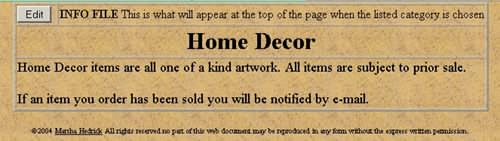 When you choose the 'EDIT' Category Info Files option you will first choose the category that you want to edit the info file for.
Then you will see a page that displays the name of the Category in bold and under that current contents of that info file such as the screenshot to the left. Note: This appears as it will appear at the top of the product page. If you used bold it will be bold, if you centered it it will be centered, etc.
 If you wish to edit it you click on the 'EDIT' button in the upper left corner.
 The information for that category will be loaded into a screen that looks like the one to the right.
You can then change the info file contents.
Note: The information is now displayed with the codes mentioned above that produce the desired formatting.
Just click in the box containing the information and make your changes.
When you have completed your changes just click on the 'Save Changes' button and the info file will be updated.
TOP OF PAGE